Showing posts with label recycle. Show all posts

Friday, January 9, 2009

Recycling our previous posting


Our next posting might be identical to the previous one. Instead of creating a new posting from scratch, we will reuse the content of the latest posting.
A simple explanation is given below.

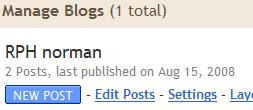
In the dashboard, choose edit post.

In the posting menu, click edit.


In the edit post menu, choose edit html.


In the edit html menu, copy the code. If we want to recycle only a certain part, select the relevant area.


Next, choose create.


Click edit html and paste the code.


Next, click compose.


Then we can start editing the new posting and writing the posting title.


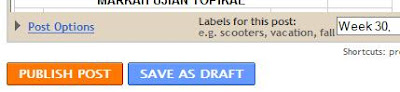
Let say we create a label "Week 30" for this posting.
(Don't worry, this function will be relevant in our next round of discussion)


Next, choose publish.


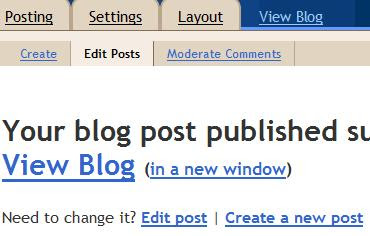
Finally, click view blog.


Now we can view result of recycling the previous posting.


We wish you the best of luck.


Read more...

Tuesday, August 19, 2008

Viewing sorted blog content


Our blog visitor might want to browse posting on certain weeks.
Setting up a weekly menu on the sidebar will facilitate such an idea.
A step-by-step guide is given below.

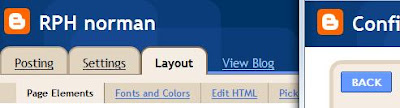
First, in the dashboard, choose edit post.


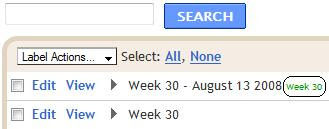
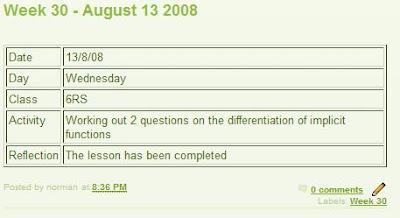
Notice that the second posting has been labelled "Week 30" (in green colour).
Now we will edit the first posting by adding the same label.


Then click publish.


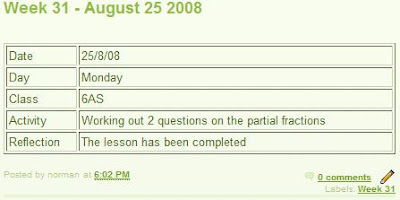
Next, we will create a new posting dated August 25 2008 and give it a label "Week 31".
Choose create a new post.


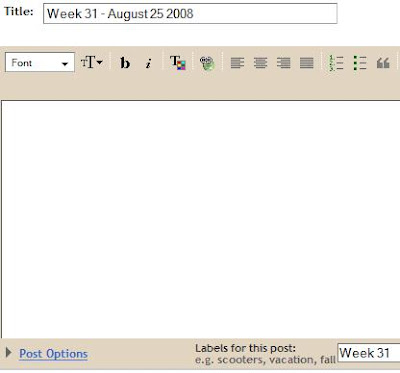
We are now giving a title and a label "Week 31" for this posting.


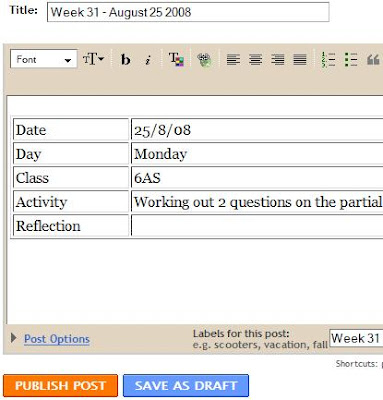
As for the posting body, we can either type anything we want or we can also recycle the previous posting.
Then choose publish.


Next, click view blog.


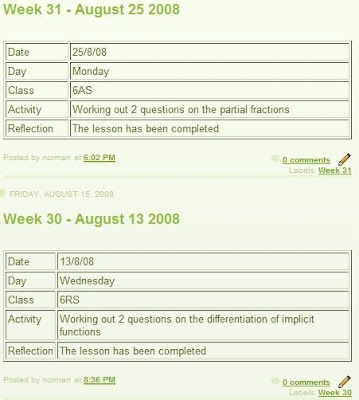
Notice that our visitor is now viewing the whole blog. We will then help him viewing a specific posting (sorted by week).


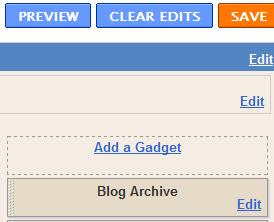
On the top right corner, choose customise.


Then click add a gadget.


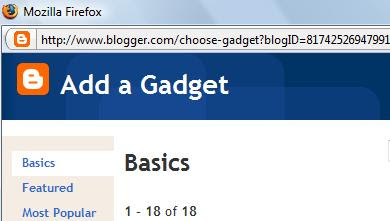
A new window (Add a gadget) will be opened.


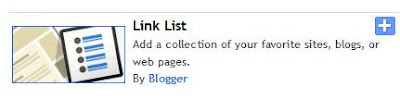
Choose link list.


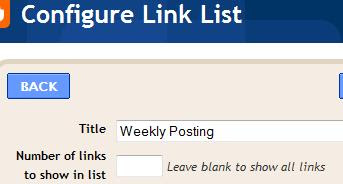
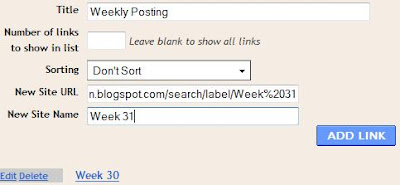
We will give a title for the menu.


We are going back to the main Blogger window.
Choose view blog.


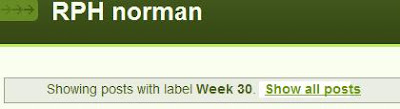
Click label "Week 30"


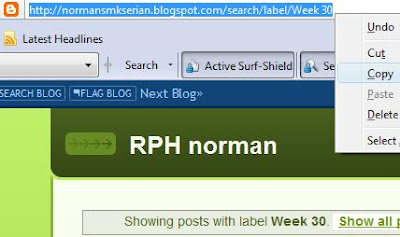
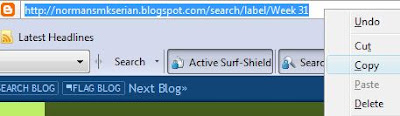
Copy URL for Week 30.


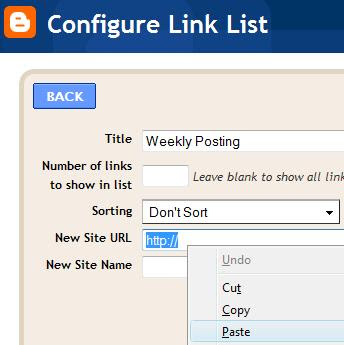
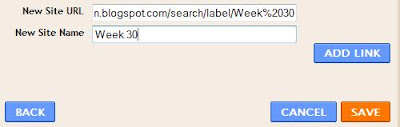
Paste the URl in the new site url box.


Give the new site a name "Week 30" and choose add link.


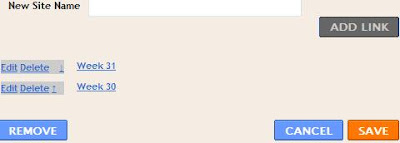
Repeat the same procedure for Week 31.
(Click show all post, ... and click save)


Choose view blog.
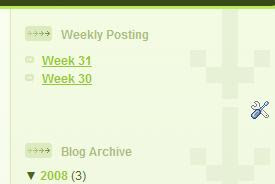
The weekly menu now appears on the sidebar.


If the visitor click on Week 30 in the Weekly Posting, all posting labelled Week 30 will appear.
The same thing goes should he choose Week 31.

We wish you all the best.


Read more...